
January 23, 2026 08:03 by
 Peter
PeterNugget Link for HTTP Posted File Helper V.1.0.2. This lightweight library eliminates boilerplate when sending files to IIS Web Server by offering a helper class called FileHElper.cs with overloaded methods ProcessFile() and ProcessFIleAsync().

Installing: To install the library, enter the following command in the Visual Studio Nuget Package Manager Console.
PM> Install-Package HttpPostedFileHelper
Usage
Processing Single Files (Basic Usage)
[HttpPost]
[ValidateAntiForgeryToken]
public ActionResult UploadFile(HttpPostedFileBase file) {
//Instanciate the Filehelper class to create a Filehelper Object
FileHelper filehelper = new FileHelper();
filehelper.ProcessFile(file, "/MyTargetLocation");
return view();
}
Processing Multiple Files
This makes a provision for multiple files being uploaded to the Server with an overridden method for processing an IEnumerable of files (HttpPostedFileBase Collection).
[HttpPost]
[ValidateAntiForgeryToken]
public ActionResult UploadFile(Model model, IEnumerable < HttpPostedFileBase > file) {
FileHelper filehelper = new FileHelper();
// ProcessFile returns count of files processed
int postedfiles = filehelper.ProcessFile(file, "/MyTargetLocation");
if (postedfiles > 0) {
//files were written successfully
}
return View("Home");
}
Asynchronous File Processing
Processing files can be done asynchronously. This allows large files to be processed in the background thread freeing the main thread.
[HttpPost]
[ValidateAntiForgeryToken]
public async Task < ActionResult > UploadFile(Model model, IEnumerable < HttpPostedFileBase > file) {
FileHelper filehelper = new FileHelper();
await filehelper.ProcessFileAsync(file, "/MyTargetLocation");
//you can do some other work while awaiting
return View("Home");
}
Reject File Extensions During Upload
You can specify the file types to be rejected during an upload by supplying a string of the file extensions.
[HttpPost]
[ValidateAntiForgeryToken]
public async Task < ActionResult > UploadFile(Model model, IEnumerable < HttpPostedFileBase > file) {
FileHelper filehelper = new FileHelper();
string reject = ".jpeg,.png,.svg";
int postedfiles = await filehelper.ProcessFileAsync(file, "/MyTargetLocation", reject); //you can do some other work while awaiting
if (postedfiles > 0) {
//files were written successfully
}
return View("Home");
}
Thanks for reading this blog. I hope it will help someone.
November 26, 2025 06:27 by
PeterI'm assuming that you already have a pool on your Windows Server IIS when you read this article. To learn how to publish ASP.NET Core 10 applications on IIS environments, follow these steps.
You must configure the project to run on the architecture from the target pool and set up your code to support IIS. Verify the inetmgr console, the Advanced setting, and whether Enable 32-Bit programs is set to true to determine whether your pool is operating on x86.
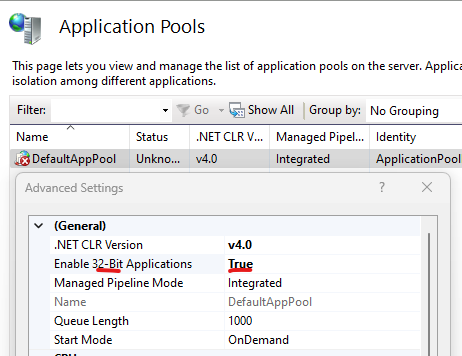
Application Pools
Let's do the steps to publish
You need to setup the x86 platform for your project to run on IIS as x86 aplication.
And create a publish profile selecting the x86 release.
Step 1. Start your new ASP.NET Core MVC
dotnet new mvc -n MyTestApp
Step 2. Choose your architecture pool. It should be the same as the pool on IIS (x86 for 32 bits).
2.1. From Visual Studio 2026 select Configuration Manager.
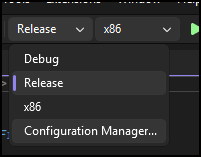
Menu Configurations
2.2 Select "New..."
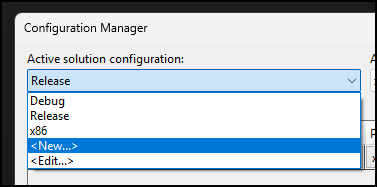
2.3 Type the platform "x86" and press OK.
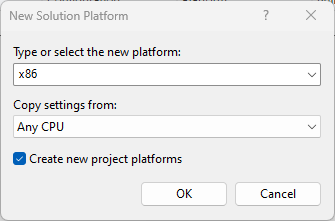
New Solution
Step 3. Now select "Publish..." from Solution Explorer's context menu
3.1. Select Folder as target.
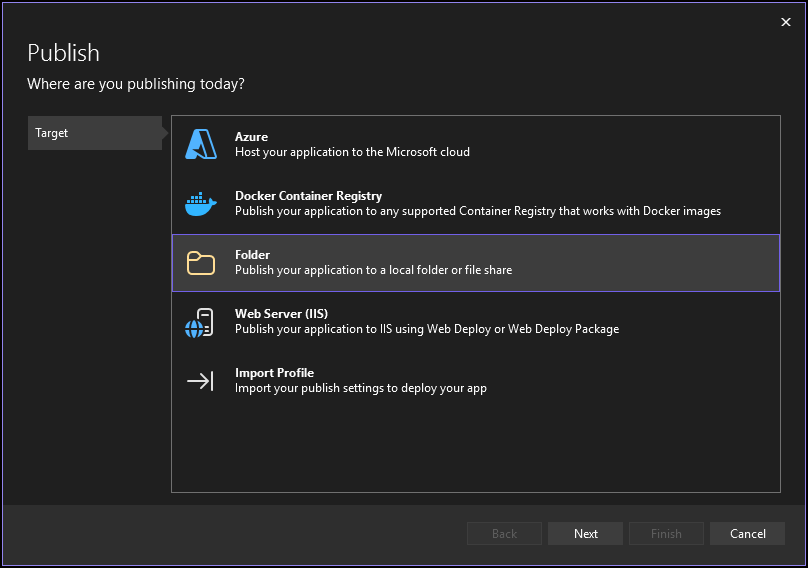
3.2. Choose Configuration "Release - x86", and target Runtime "win-x86":
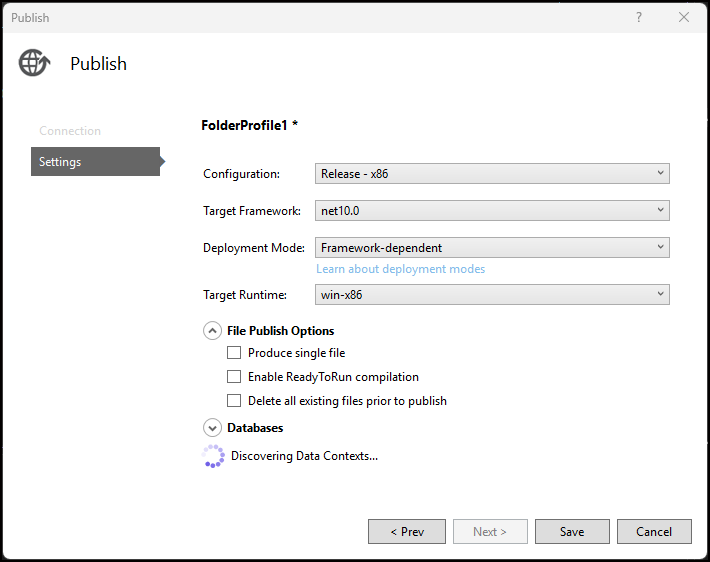
Active solution
Now you can publihs it copying the files to the IIS target folder on Windows Server.
Important
Before the deploy on the IIS you need to install on the WIndows Server the .NET 10 Hosting Bundle
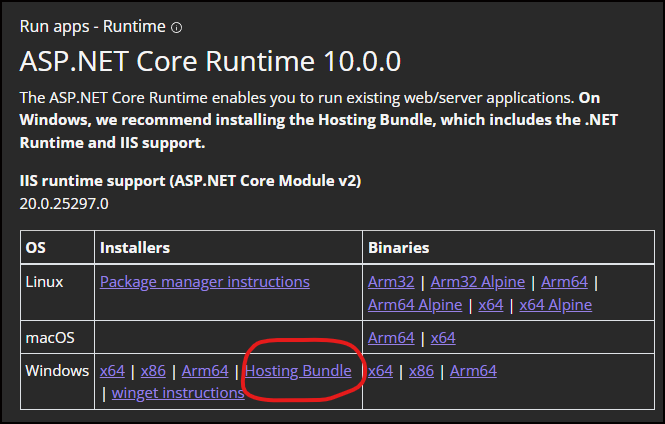
Hosting Bundle option.
Conclusion
There are a few steps, but it is essential to follow them to succeed in publishing ASP.NET Core 10 applications.